
Customizing filters and lists
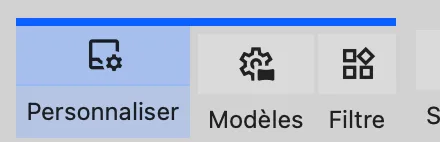
By clicking on the small padlock on the left (or by right-clicking), the filter panel switches to "edit" mode, allowing you to create and edit filters for your collection.
Items can be rearranged by dragging and dropping them with the mouse.
Lists and conditions
- Smart lists: Allow you to manage conditions based on the values of your items.
- Simple lists: These act as "boxes" into which you can drag the items of your choice.
Display types
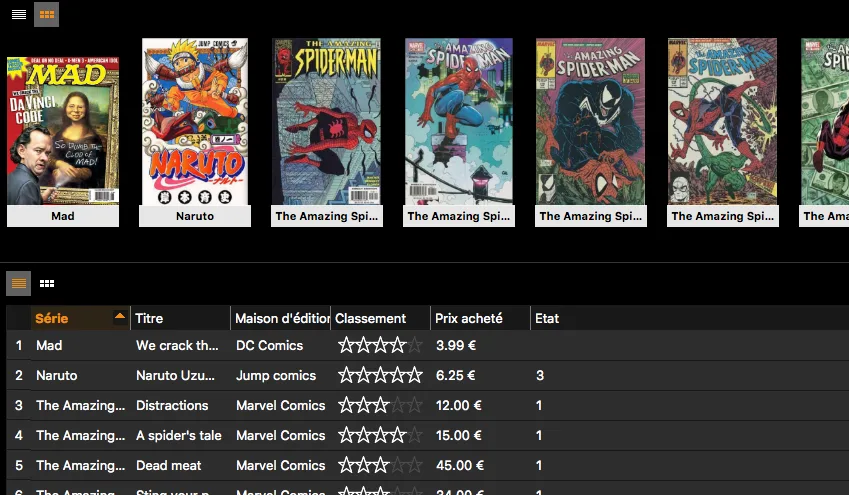
Here you can choose the display type for your list by clicking on the list properties button below.
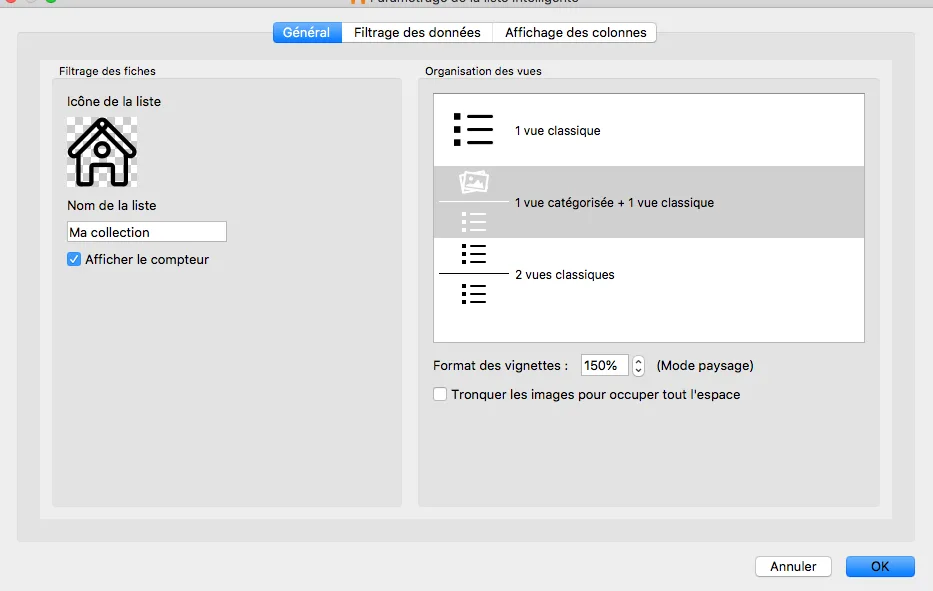
Display options:
- Classic
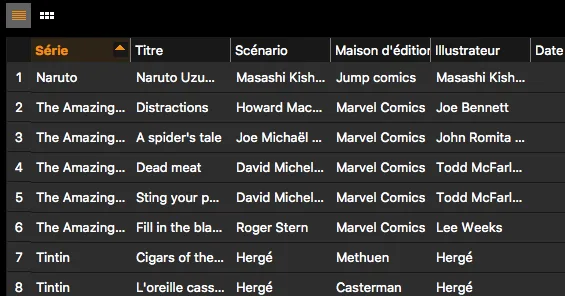
- 2 views, one of which groups items together
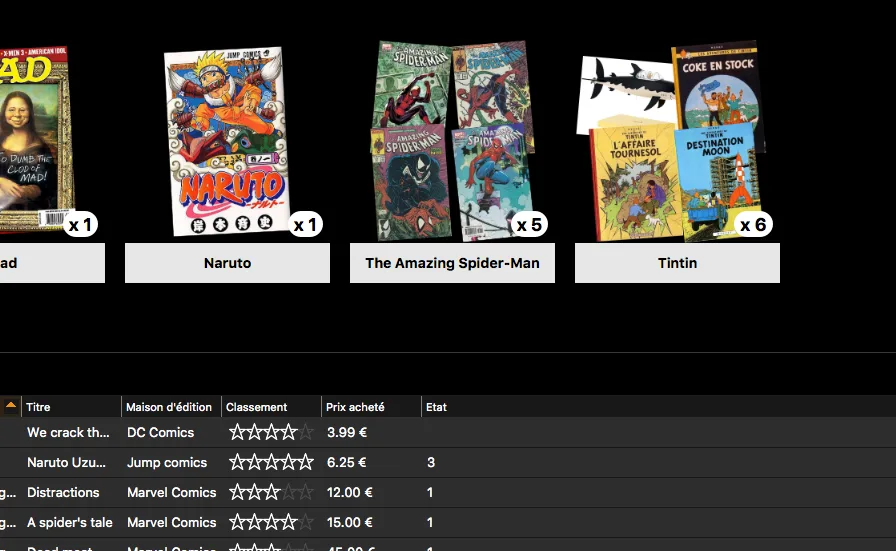
- 2 Classic views
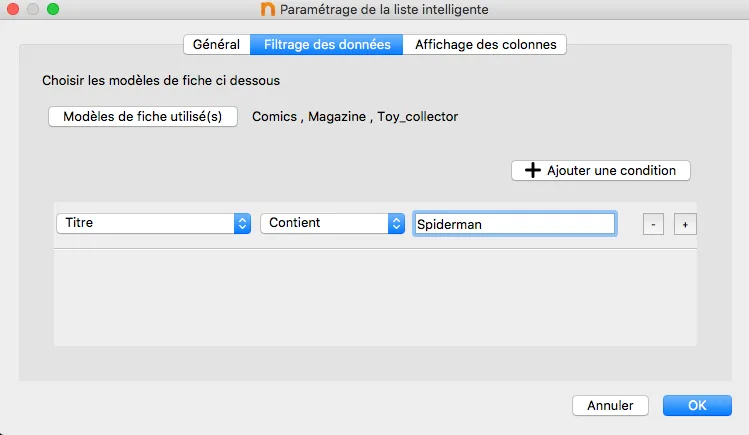
Data filtering
You can add conditions based on criteria of your choice for displaying your list.
Column display
This defines the display of the view in "table" mode. You can delete or create columns of your choice.
Column management
Sorting columns
You can rearrange columns using drag and drop and select the fields displayed according to the type of items.
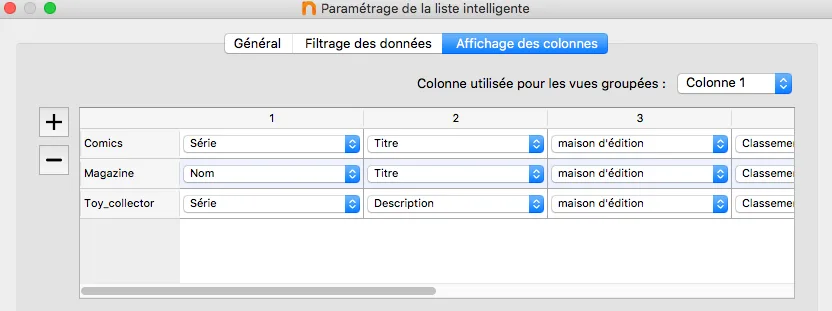
Grouping column
This is also where you select the column that will determine your grouped view (if you have selected this option in "General").

Reset columns
The "reset columns" button allows you to automatically rearrange the columns according to the order of the fields in your record templates.
This automatic layout is calculated based on the order of the fields in your form templates.